
- At the login screen of your DAT Product, click on the link Forgot Password

- Confirm your email and click CONTINUE.

- Access your email, and find the 6-digit code.
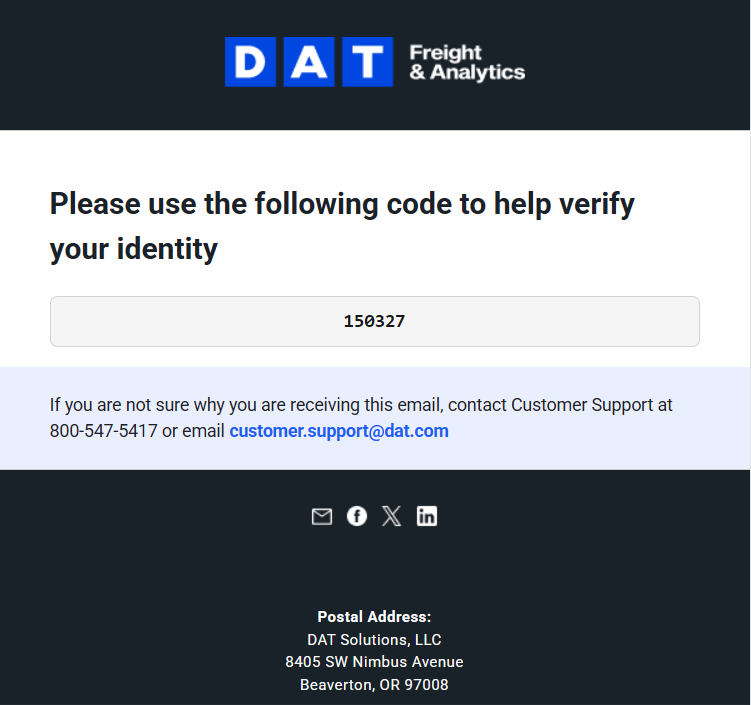
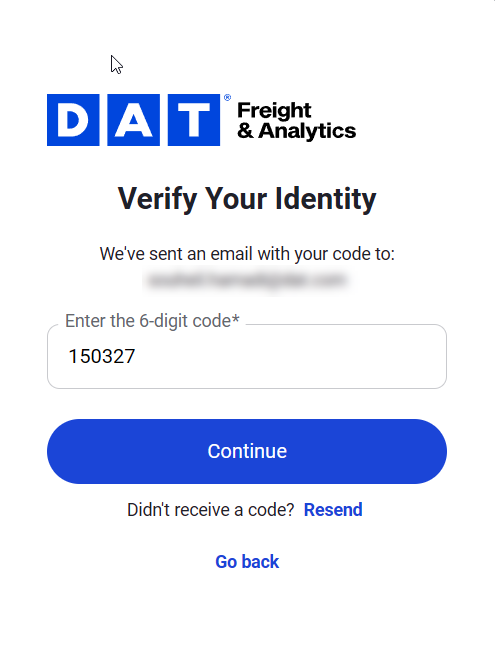
- Enter the 6-digit code, and click CONTINUE .
- Please input your new password, ensuring it fulfills the specified requirements. Then, re-enter the same password for confirmation. Click on Reset PASSWORD.

- When you receive "Your Password has been successfully changed" message, navigate back to your DAT Product, and enter your new password.

Note: Requesting a new password reset email will invalidate any previous ones. If you didn't receive the email right away, please wait a few minutes before trying again